
Updates
Overview
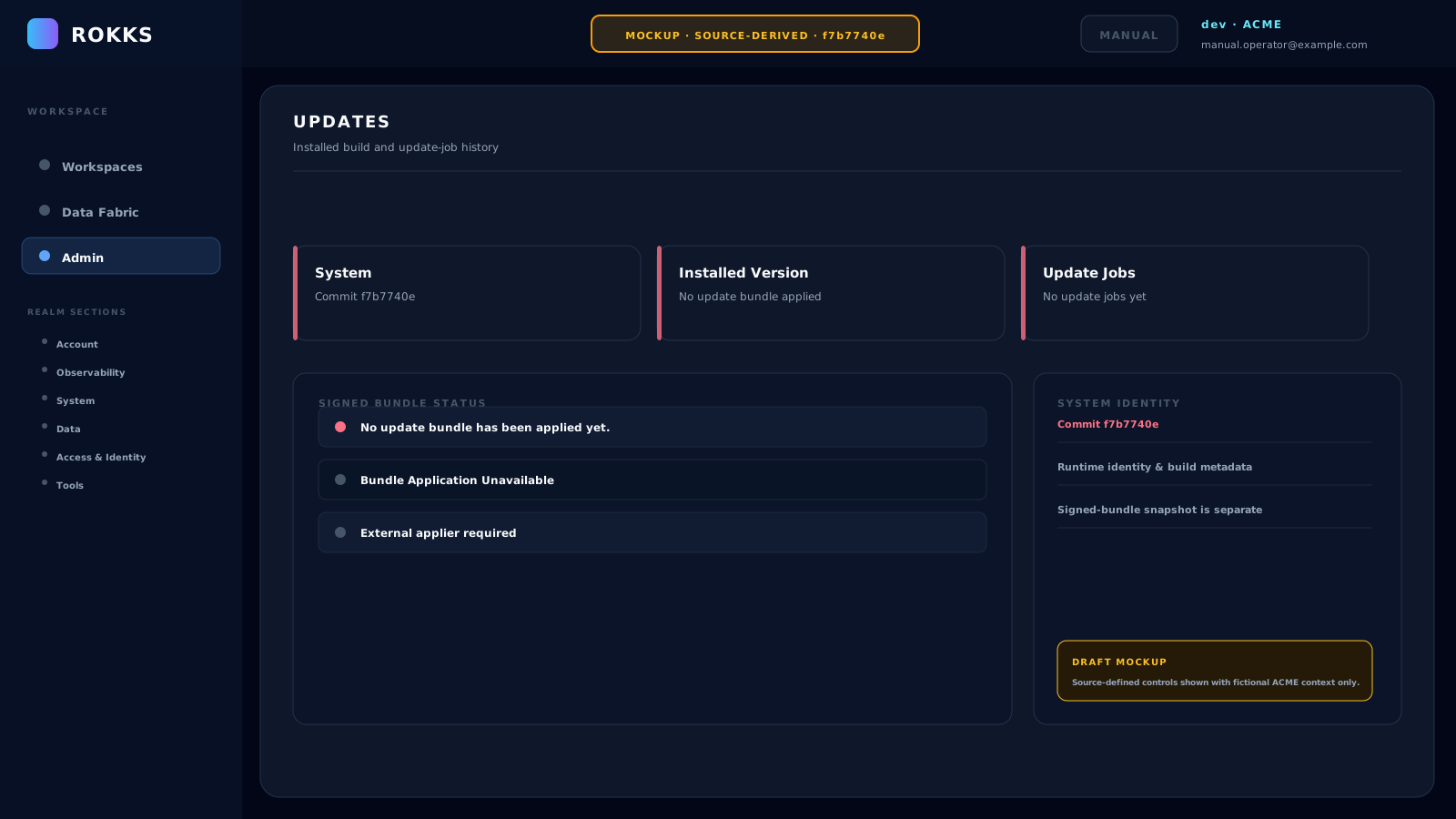
Section titled “Overview”The appliance-only Updates page helps system owners inspect the running build identity, any recorded signed-bundle installation snapshot, and earlier update jobs. It is an operational status page, not a normal user workflow.
How it works
Section titled “How it works”The current release retains the signed-bundle format and verifier, but deliberately disables in-process application. The Worker cannot safely replace its own container and then finish health verification or rollback. On an appliance, the page therefore shows Bundle Application Unavailable until a host-owned external applier is delivered. Cloud deployments continue to update through their deployment pipeline.
Step-by-step
Section titled “Step-by-step”- On an appliance deployment, open Admin → System → Updates.
- Review System runtime identity and the installed snapshot, if one exists.
- If the page shows Bundle Application Unavailable, do not attempt to bypass it or post a bundle directly to the API.
- Follow the deployment channel operated for your installation (for example, your managed CI/CD pipeline).
- Before an externally managed deployment, check Service Stack and Job Queue health and schedule any required user communication.
- After deployment, confirm Service Stack health, open a dashboard, and run a small query.
Common mistakes
Section titled “Common mistakes”Do not interpret the presence of bundle-building or verification code as an operational in-app updater. applyAvailable: false is a hard safety boundary, not a configuration prompt.
Do not skip a smoke test after an externally managed update. Open a dashboard, run a small query, and check the Job Queue.