
Workspaces
Overview
Section titled “Overview”A workspace is the home for a related set of dashboards and reports. Use workspaces to keep a business or operational subject together, then use the workspace home to reach its pinned insights, dashboards, and reports.
How it works
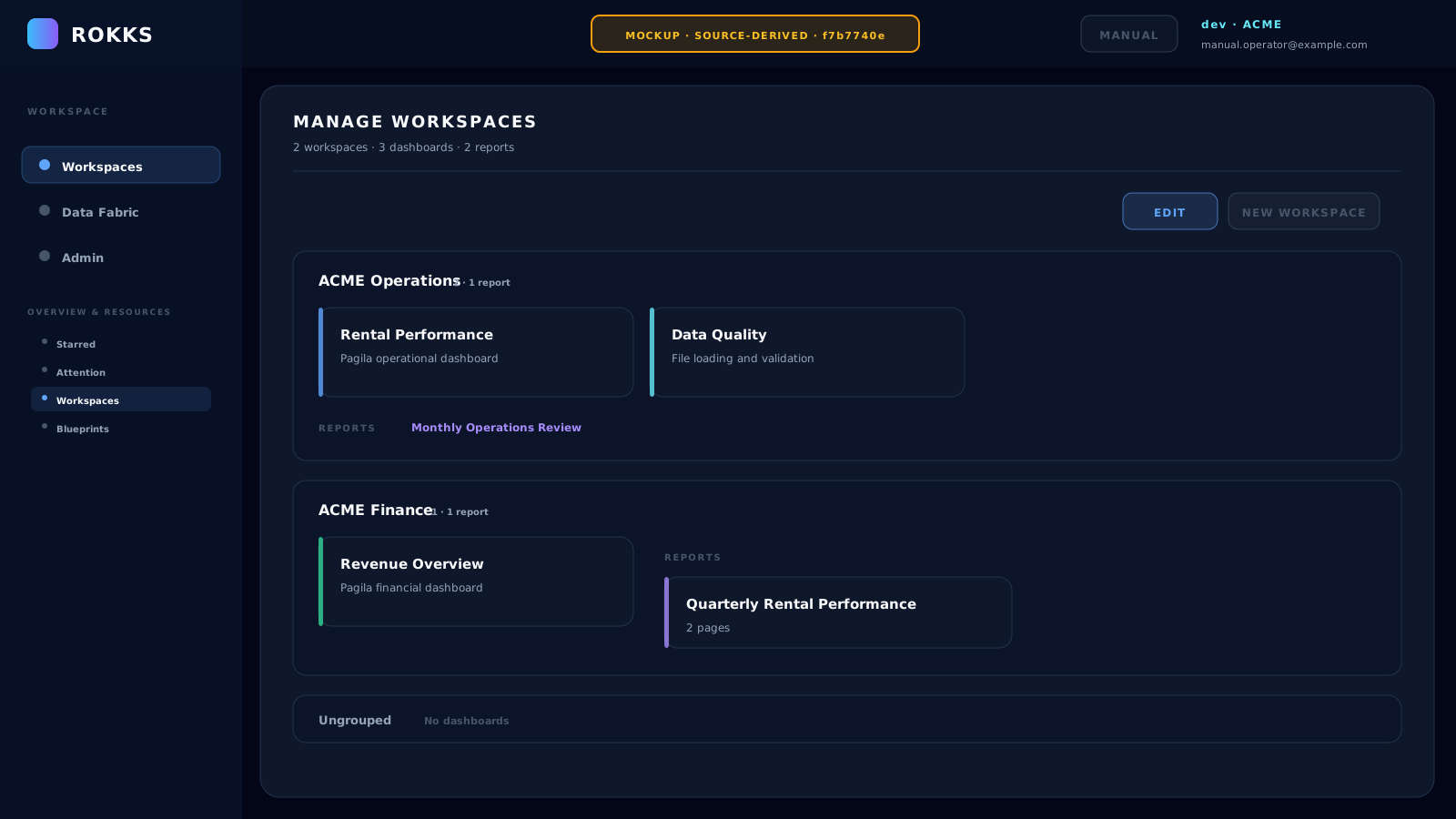
Section titled “How it works”The Manage Workspaces page shows every workspace and an Ungrouped bucket. Browse mode opens workspace, dashboard, and report cards. Edit mode exposes workspace and dashboard names, icons, ordering, movement, permissions, and workspace deletion.
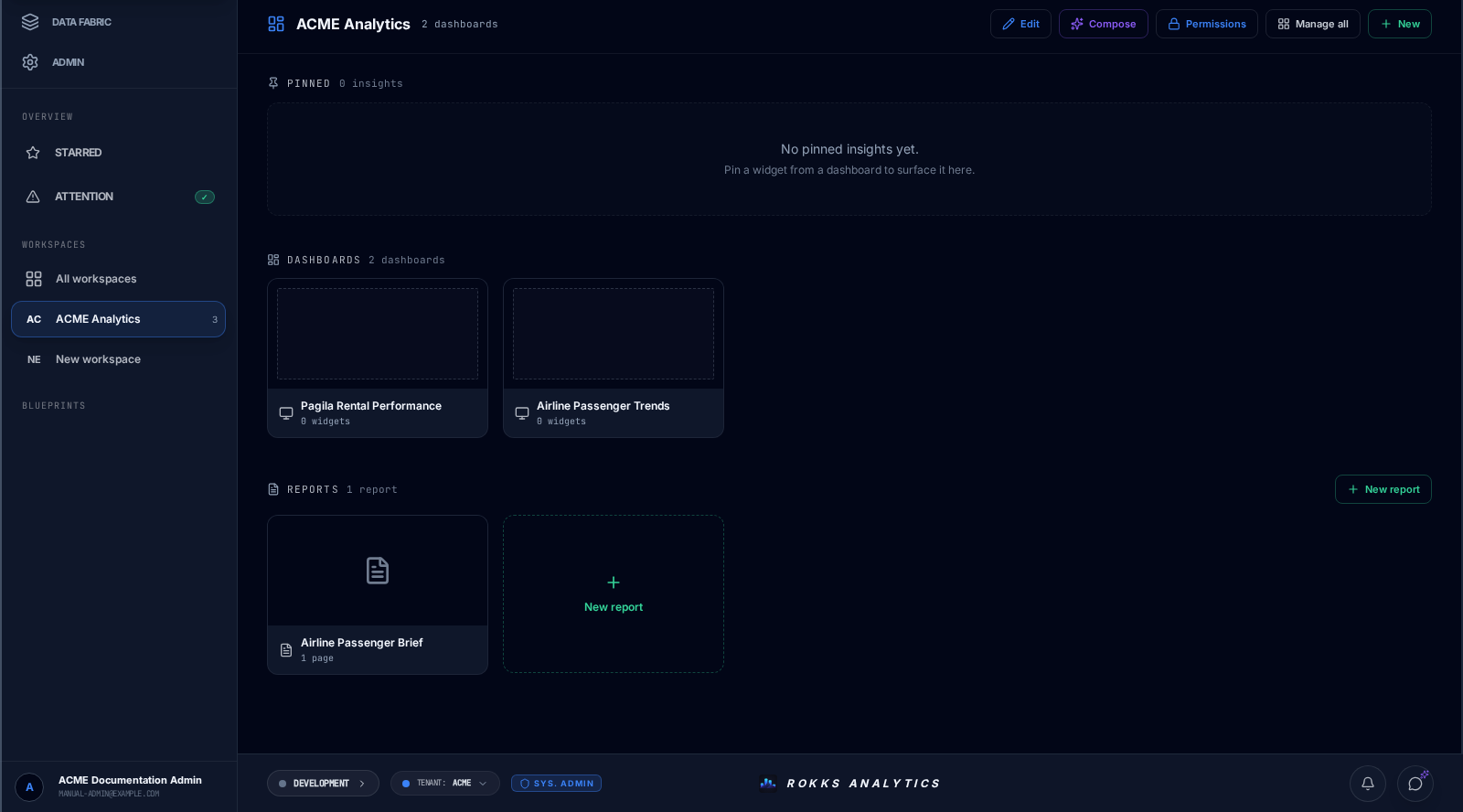
A single workspace home has three tiers:
- Pinned — live widgets associated with that workspace.
- Dashboards — dashboard preview cards.
- Reports — report cards and New report. Reports belong to a real workspace, so this tier does not appear in Ungrouped.
The Compose action opens the workspace brief and source-material composer. Permissions opens the role-assignment editor. It separates grants made directly on this workspace from read-only inherited grants, and lets an authorized administrator choose a subject and an eligible role. Subjects can be users, groups, companies, or teams. Held rank — no explicit cap uses the subject’s held role; an explicit role caps the grant rather than promoting that subject.
In this documented build, object role assignments govern metadata reads and writes for workspaces and their resources. Inherited access must be changed at its source; it cannot be subtracted on a child object. Do not treat object permissions as proof of complete SQL or data-source isolation: the SQL query paths still disclose incomplete data-source authorization. Confirm the data protection separately before using confidential information.
Step-by-step
Section titled “Step-by-step”- Open the Workspaces area and select All workspaces.
- Click New workspace. The new section appears with the name New workspace.
- Click Edit to expose management controls.
- Rename the workspace inline and choose an icon if one helps users identify it.
- Use the dashed Add dashboard card to create a dashboard inside that workspace. The new dashboard opens immediately.
- Return to the workspace and drag dashboard cards to reorder them. On Manage Workspaces, drag a dashboard into another workspace to move it.
- Click Done to return to browse mode.
- Open the workspace header to see its Pinned, Dashboards, and Reports tiers.
- Use New for another dashboard or New report for a report. Use Manage all to return to the tenant-wide view.
Sidekick can create and rename a workspace or dashboard in Agent mode. Use the dashboard authoring cookbook and stop after one reviewable result before adding the next dashboard component.
Common mistakes
Section titled “Common mistakes”Do not look for report cards while Manage Workspaces is in Edit mode. The current edit layout shows workspace and dashboard management, but its report rows are hidden until you return to browse mode.
Do not delete a workspace to delete its dashboards. Deleting the workspace removes the grouping; its dashboards remain and move to Ungrouped.
Do not confuse company or team membership with a workspace grant. Membership identifies the people a grant can reach; the assignment binds that subject to an object. Do not use Permissions alone as proof that a user cannot query the underlying data.