
Starred and Attention
Overview
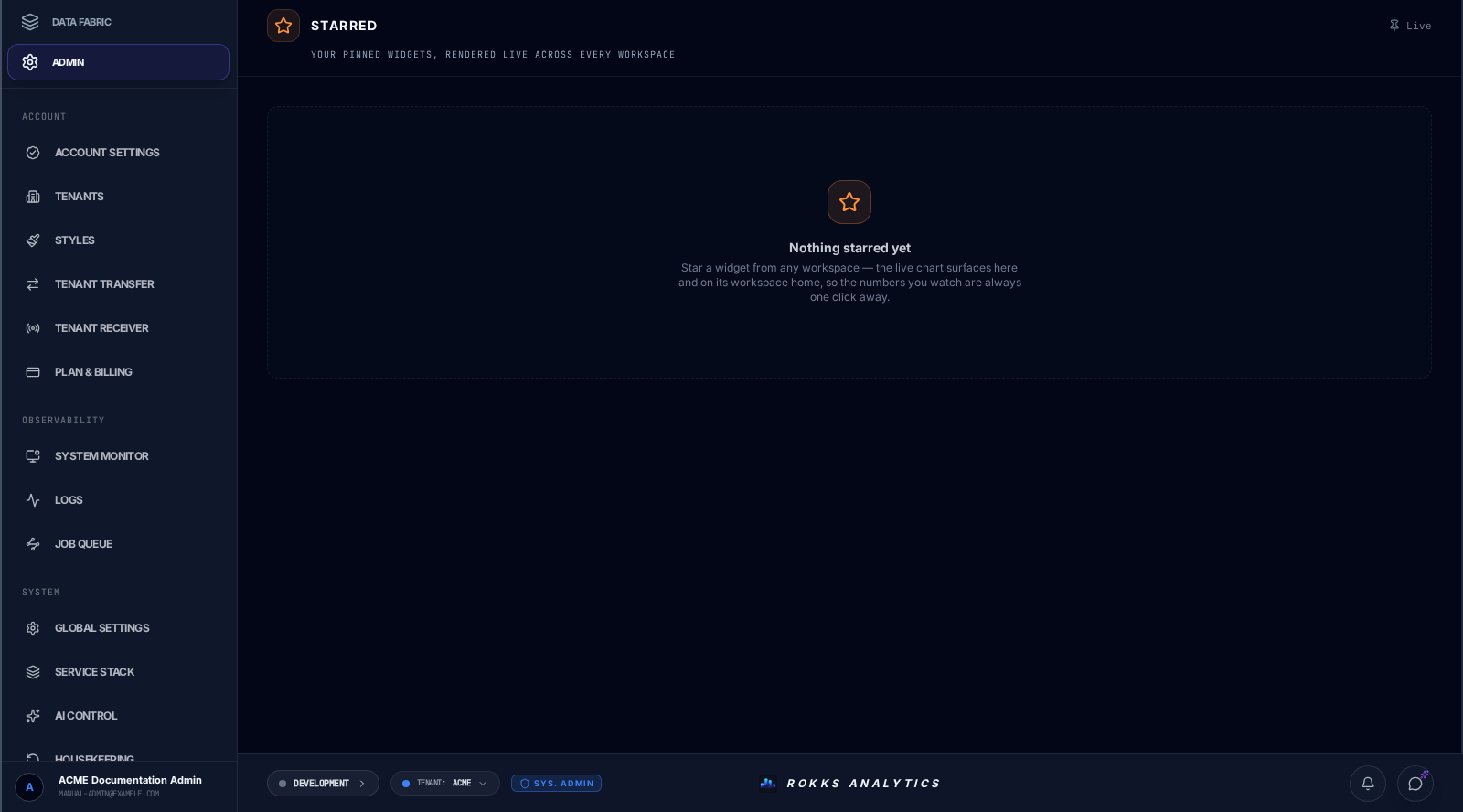
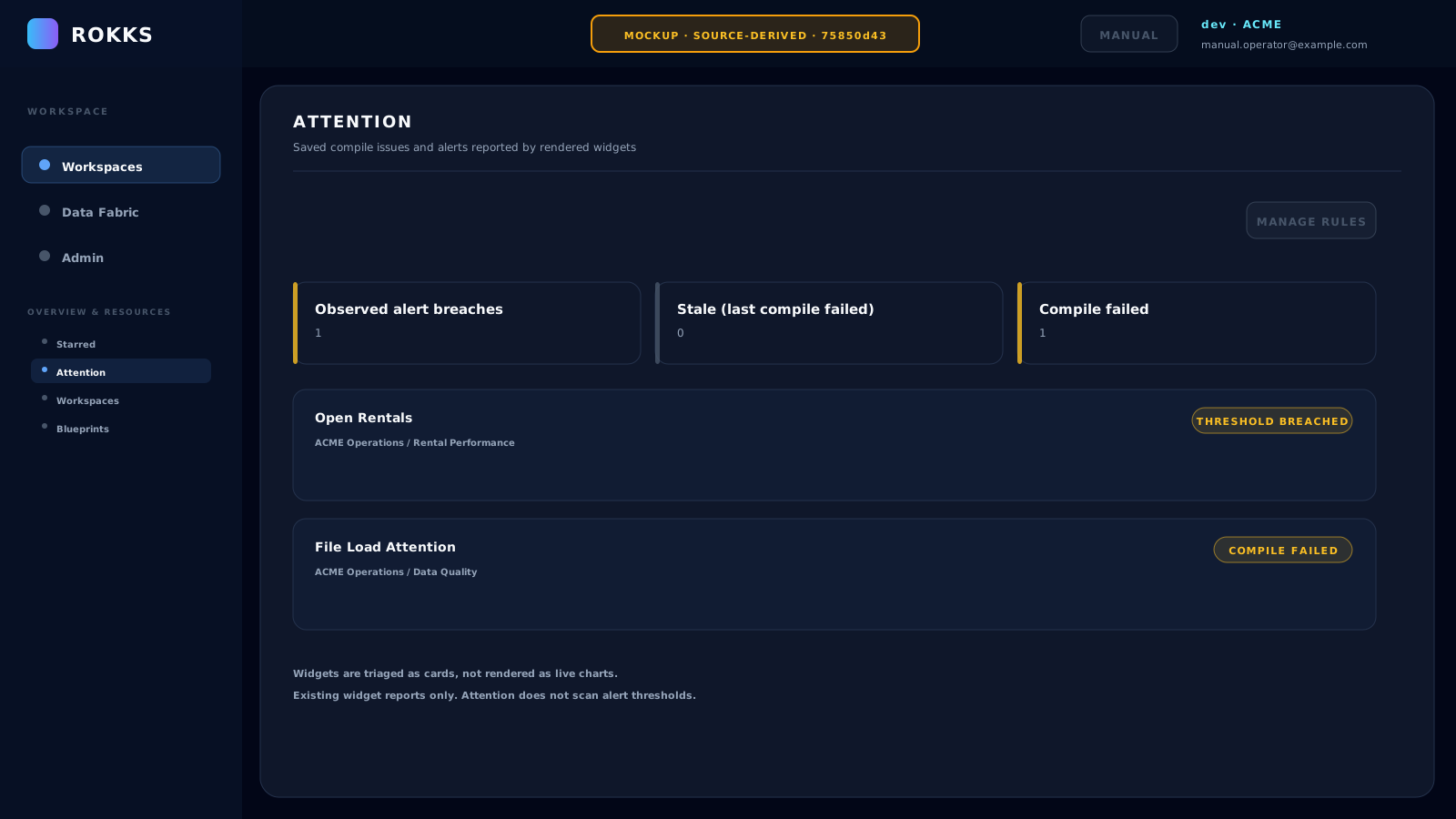
Section titled “Overview”Starred and Attention are separate cross-workspace overview pages. Starred brings selected live widgets together. Attention lists saved compile failures, stale widgets, and alert violations already reported by rendered widgets.
How it works
Section titled “How it works”Starred groups pinned widgets by workspace and dashboard. Supported data widgets render as live charts or tables, and each tile includes a location link back to its source dashboard. Narrative insight widgets are not included in this live feed.
Attention is a triage view, not a second dashboard. It groups compact cards by workspace and dashboard and classifies each affected widget as:
- Threshold breached — a rendered widget has reported an alert violation. The summary counts these as Observed alert breaches; Attention does not independently confirm the current value.
- Stale (last compile failed) — the latest compile failed, but an earlier compiled result can still render.
- Compile failed — the compile failed and no earlier compiled result is available.
Opening Attention does not run threshold checks, issue new data queries, or start a periodic scan. The feed reflects saved widget configuration and existing live-widget observations. Manage rules opens the Sentinel alert-rule manager.
No reported issues means that this feed has no saved compile failures, stale widgets, or reported live-widget alerts. It does not prove that every widget is healthy, and it is not a whole-platform health scan.
Step-by-step
Section titled “Step-by-step”- Open the Workspaces area.
- Select Attention. When issues are reported, review the three status totals; otherwise read the No reported issues explanation.
- Read a card’s status, reason, workspace, and dashboard before deciding what to fix.
- Select a card to open its source dashboard and focus the affected widget.
- Click Manage rules when an alert-rule definition needs review. Reopening Attention does not trigger an alert evaluation.
- Open Starred to view the current live render of widgets already present in the pinned set.
- Use a Starred tile’s location header to open the source dashboard.
Common mistakes
Section titled “Common mistakes”Do not read Stale as “no data.” A stale widget still has a previous compiled result, but that result may not reflect the latest configuration.
Do not expect Attention to repair a widget in place. Its cards diagnose and navigate; make the correction in the source dashboard or alert-rule manager.
Do not treat an observed breach as a fresh measurement, or an empty Attention feed as evidence that every threshold has been checked. Attention displays existing reports rather than evaluating rules itself.
Do not expect the Starred page itself to manage the pinned set. This build exposes viewing and jump-to actions on that page, but no pin or unpin control there.