
Blueprints
Overview
Section titled “Overview”Blueprints are widget-bearing resources listed separately from workspaces and dashboards. Use the Blueprints section to keep named analytical structures available as their own resources while the product’s blueprint workflow continues to evolve.
How it works
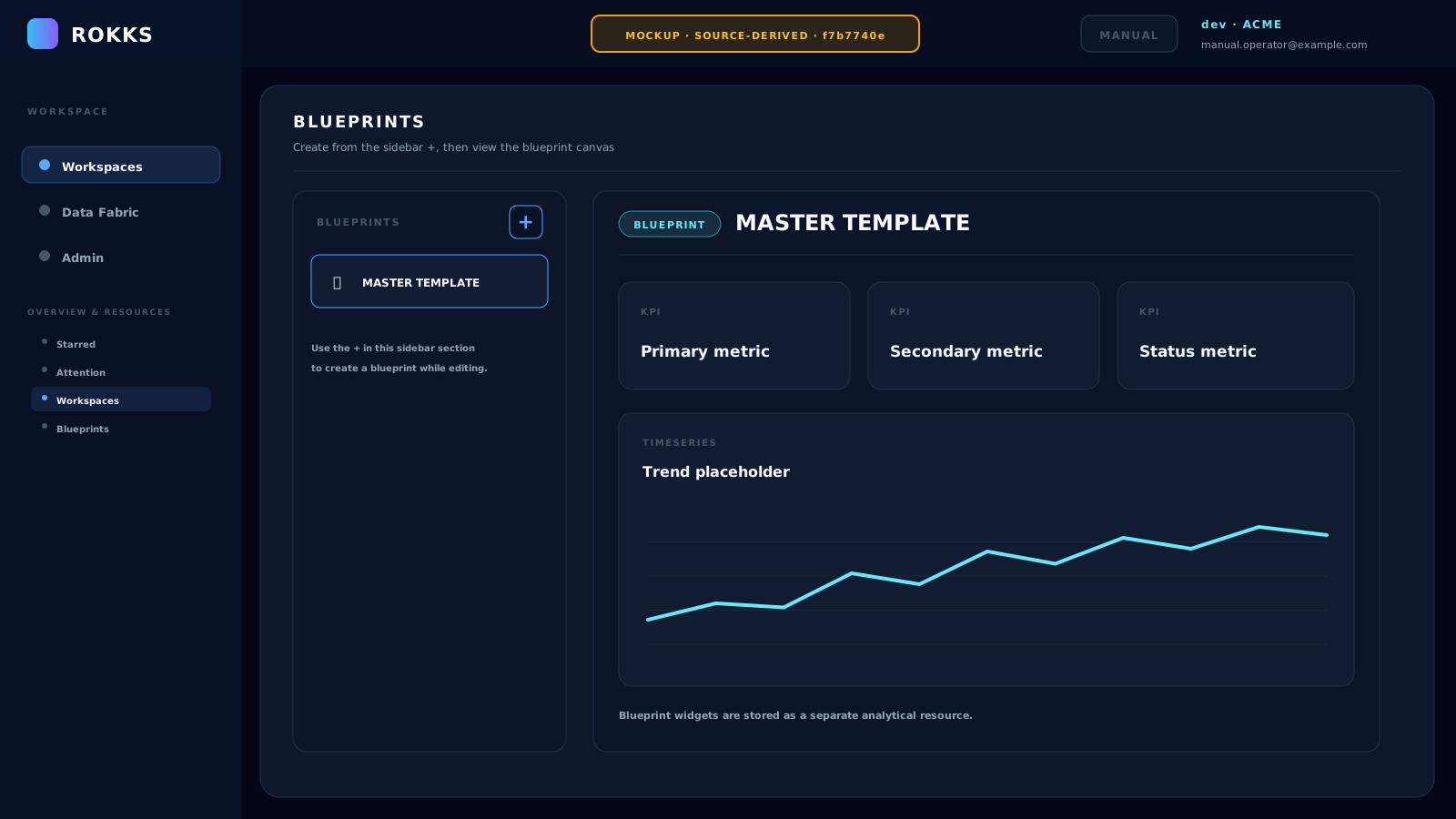
Section titled “How it works”The pinned, expanded sidebar has its own Blueprints section. Sidebar edit mode exposes a plus control to create a blueprint and controls to rename, reorder, and delete existing entries. Opening an entry selects the Blueprint view and renders its stored widgets on the shared analytics canvas.
Blueprint management stays in that sidebar section. The name and icon identify an entry, and its position in the section is user-controlled. Creating an entry starts with the product-supplied MASTER TEMPLATE name, then immediately presents the inline rename field; the initial label is not a separate template choice.
This build does not expose a command that applies, instantiates, or converts a blueprint into a dashboard. It also does not expose the dashboard’s Edit Layout action while the Blueprint view is active. A blueprint is therefore a separately stored resource in this build, not a complete end-user templating workflow.
Step-by-step
Section titled “Step-by-step”- Open the Workspaces area.
- Pin and expand the sidebar; sidebar editing is unavailable while the sidebar is only a hover flyout.
- Click the pencil icon to enter sidebar edit mode.
- In Blueprints, click the plus control. ROKKS creates an entry named MASTER TEMPLATE and immediately opens its name for editing.
- Enter a descriptive name and confirm it.
- Click the blueprint entry to open its current canvas.
- Return to sidebar edit mode when you need to rename, reorder, or delete the entry.
Common mistakes
Section titled “Common mistakes”Do not promise users that selecting a blueprint will create a dashboard. There is no apply or instantiate control in this documented build.
Do not confuse sidebar edit mode with dashboard layout editing. Sidebar edit mode manages the blueprint entry; the Blueprint view does not currently expose Edit Layout.
Deletion is final in the sidebar confirmation shown by this build. Verify the target name before you confirm Delete Resource.