
Job Queue
Overview
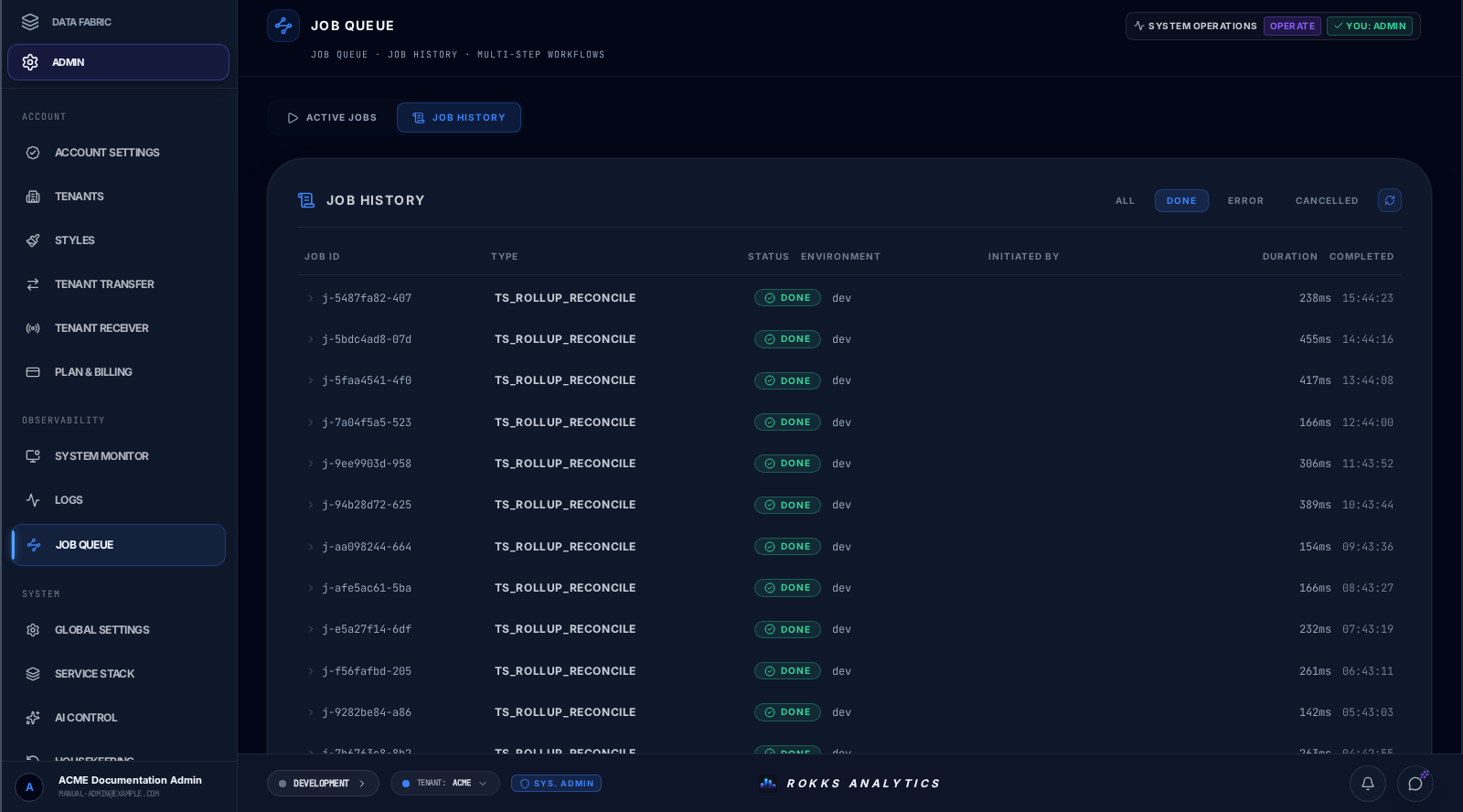
Section titled “Overview”The Job Queue shows long-running work such as file loads, web syncs, AI generation, tenant operations, and maintenance tasks.
How it works
Section titled “How it works”Each job has a type, status, progress, steps, result, and error if something failed. Jobs continue server-side even if the browser closes. The queue is the best place to check whether work is active, complete, cancelled, or failed. A terminal status describes that job handler; for a parent/child workflow, DONE can mean that the parent safely queued a child rather than that every downstream effect has finished.
Step-by-step
Section titled “Step-by-step”- Open Job Queue.
- Use the status pills when you need to narrow by state, then scan the Type column for the relevant job. This page has no job-type filter.
- Open the job details.
- Review steps and progress.
- If failed, read the error and affected resource.
- Fix the source issue and rerun the user action if needed.
Sidekick can list and inspect jobs in Ask mode without retrying them. Use the operations cookbook to keep diagnosis separate from an explicit Agent request to retry or cancel one exact job.
Common mistakes
Section titled “Common mistakes”Do not start the same operation repeatedly because a spinner is still visible. Check the job queue first.
Do not ignore partial failures. A job may complete some steps and fail on final persistence or cleanup. When end-to-end completion matters, inspect the result, any child job, and the affected resource instead of relying on the parent status alone.