
Account Settings
Overview
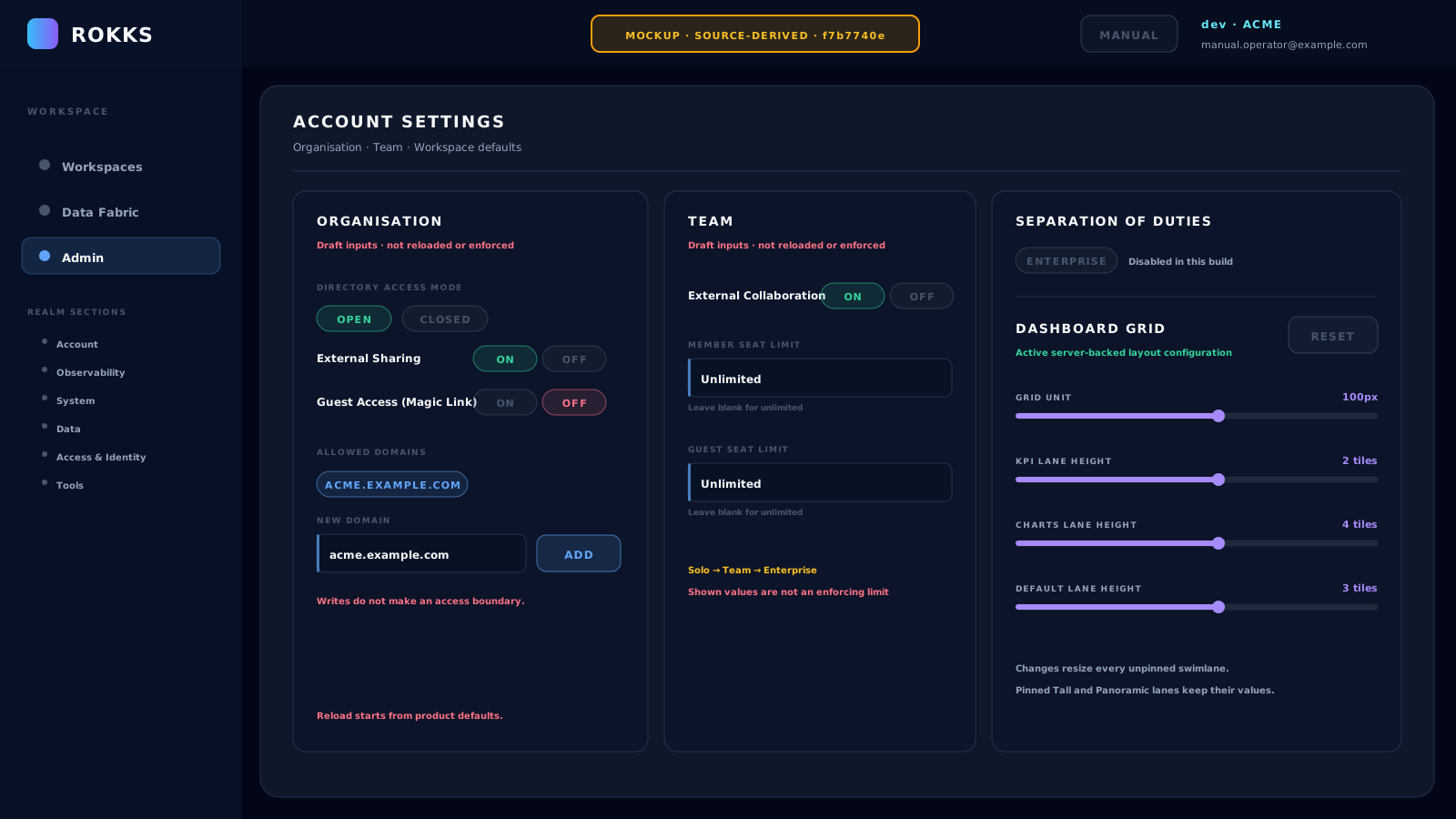
Section titled “Overview”Account Settings currently combines one active configuration area with several preview controls. Use Dashboard Grid for shared layout defaults. Treat the Organisation and Team policy panels as disabled, non-enforcing previews in this documented build; personal display choices belong under your user preferences.
Important — Organisation and Team are not an access boundary in this build. Their controls are disabled and do not update, store, reload, or enforce any policy. Authentication, sharing, guest admission, and seat limits do not consume these tenant/team previews; in particular, per-tenant Allowed Domains enforcement is deferred. Do not rely on these panels to grant or deny access.
How it works
Section titled “How it works”The page has four sections with different maturity:
- Organisation shows disabled previews for directory mode, external sharing, guest access, and allowed email domains. The page labels the card Preview · Not Enforced. Nothing on the card is applied, stored, or read back on reload.
- Team shows disabled previews for external collaboration and member and guest seat limits. No service counts seats or checks the displayed collaboration setting.
- Separation of Duties explains the Enterprise dedicated-security-officer capability. Its control is deliberately disabled and writes nothing in this build.
- Dashboard Grid is active configuration. It controls the grid unit, default lane heights, and XS through XXXL widget-width presets across the account. Its values use the server-backed settings path; swimlanes manually pinned to an explicit height keep that value.
There is no Save button. Organisation and Team controls cannot be changed and issue no policy write. Dashboard Grid changes apply immediately and are the operative settings on this page.
Step-by-step
Section titled “Step-by-step”- Open Admin, then Account Settings.
- Inspect Organisation or Team only to understand the proposed policy shape. Their controls remain disabled, so do not use the displayed values to make an access, sharing, guest-admission, or licensing decision.
- Manage current admission and membership through the Auth IAM directory. Allowed Domains, External Collaboration, and the seat-limit fields on this page are explanatory previews only.
- In Dashboard Grid, adjust the grid unit and lane-height sliders. Review the effective pixel sizes shown at the bottom of the section.
- Adjust the XS–XXXL width presets only when the whole account needs different widget widths.
- Use Reset only when you intend to restore all Dashboard Grid sliders to the product defaults.
Common mistakes
Section titled “Common mistakes”Do not interpret the absence of a Save button as proof that every panel applies immediately. Organisation and Team are disabled previews in this build; Dashboard Grid is active configuration.
Do not treat Open, Closed, External Sharing, Guest Access, Allowed Domains, External Collaboration, or seat limits as enforced policy. Their displayed values are fixed preview content, not a policy authority.
Do not interpret the Allowed Domains preview as authentication behaviour. Per-tenant domain enforcement is deferred.
Do not click Reset as a preview. It immediately replaces the current Dashboard Grid values and does not ask for confirmation.
Do not treat the disabled Dedicated Security Officer pills as a configurable switch in this build. The card is an explanatory Enterprise capability only.