
First Login
Overview
Section titled “Overview”Your first login establishes who you are, which environments you can access, and which tenant workspace is active. Rokks uses that context for documents, dashboards, jobs, alerts, and analytical queries.
How it works
Section titled “How it works”After authentication, the app loads your profile, available environments, tenant choices, and current preferences. The header shows the active scope. If the scope is missing or wrong, stop before uploading data or editing dashboards.
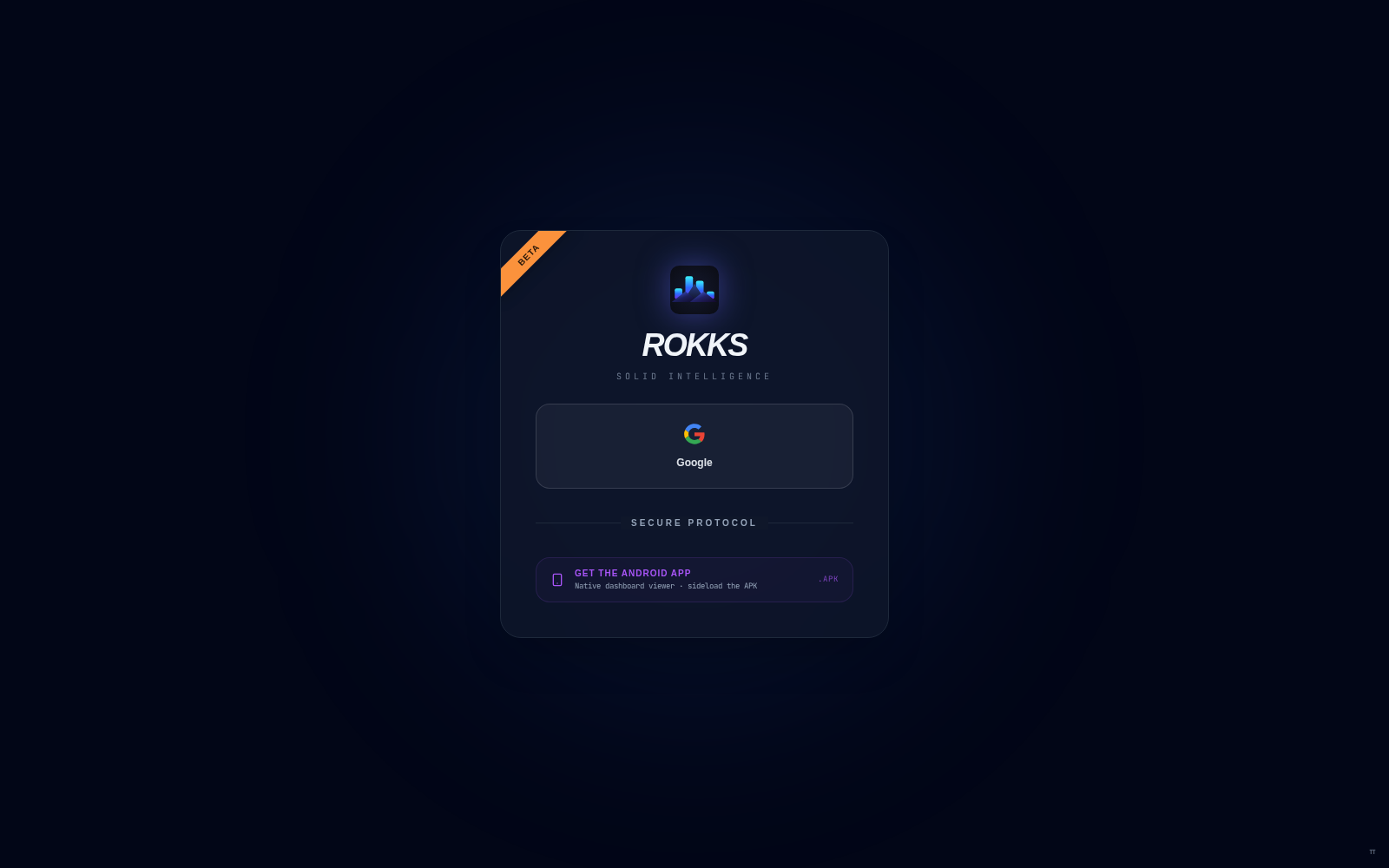
This verified beta deployment offers Google sign-in and an Android app download. Your organisation may enable different sign-in methods, and the download appears only when that deployment serves it.
Step-by-step
Section titled “Step-by-step”- Open the Rokks application URL provided by your administrator.
- Sign in with the configured identity provider.
- Confirm your name or account indicator in the header.
- Select the intended environment.
- Select the intended tenant.
- Open Workspaces or Data Fabric and confirm that the active scope contains the expected content.
- Open the Manual drawer if you need context for the current page.
Common mistakes
Section titled “Common mistakes”Do not assume that a blank workspace means data is missing. You may be in a different tenant or environment. Check the scope selector first.
Do not share screenshots that show real tenant names, customer records, or account identifiers unless your organization allows it.