
Mobile Alerts
Overview
Section titled “Overview”Mobile alerts help users notice and review important operational events while away from a desktop browser. The Alerts tab shows events the signed-in user can access in the active scope.
How it works
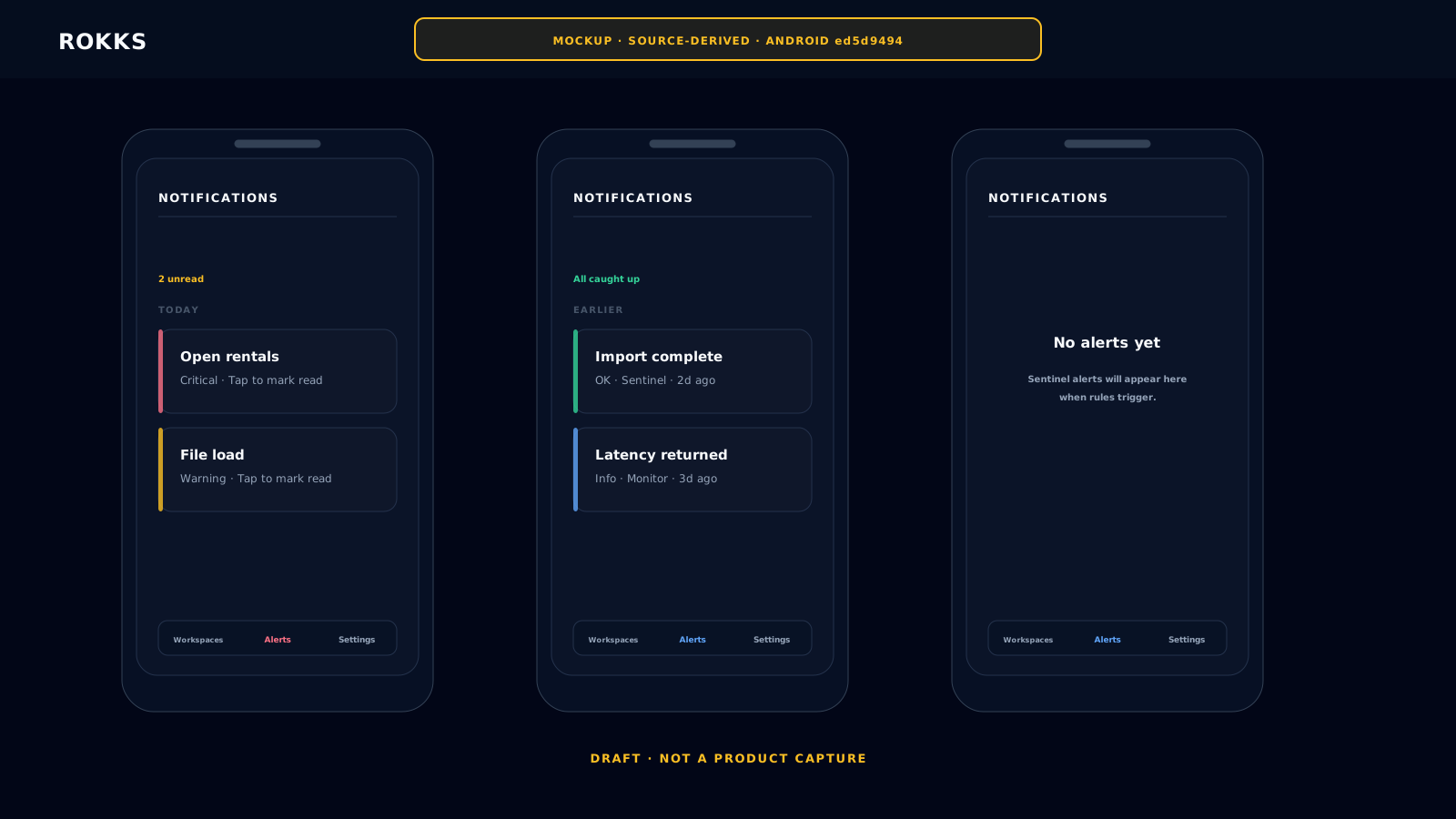
Section titled “How it works”The Alerts tab opens the Notifications inbox. Events are grouped into Today and Earlier and show unread state, severity, source, and event time. Tapping an unread card marks it read; the current screen does not open a related dashboard from that card.
The beta contains device-token registration and native notification receiving code, but native delivery still depends on the deployment and Android notification permission. This build does not provide an in-app notification-permission prompt, so treat the Notifications inbox as the dependable review surface rather than assuming push delivery is active.
Step-by-step
Section titled “Step-by-step”- Sign in to the Android app.
- Open the Alerts tab.
- Review the unread count and severity labels.
- Read the event title, body, source, and relative event time.
- Tap an unread card to mark it read.
- Open the relevant dashboard separately from Workspaces when investigation is required.
Common mistakes
Section titled “Common mistakes”Do not assume a missing push notification means no alert fired. Check the Alerts tab and the relevant dashboard if you suspect a notification channel issue.
Do not disable native notifications if the phone is part of an operational response process.