
Sidekick
Overview
Section titled “Overview”Sidekick is the chat-driven alternative to many point-and-click workflows in ROKKS. The Sidekick chat orb is available from the application shell, and an active dashboard gives it additional dashboard context. It can inspect product state in Ask mode and use shipped product tools in Agent mode to work with File Areas, governed tables, workspaces, dashboards, widgets, jobs, and selected connections.
Use this page as the canonical task cookbook. Feature pages link back to the relevant recipe instead of duplicating the chat workflow.
How it works
Section titled “How it works”Sidekick uses the same product operations exposed to the application. It does not gain a separate route around tenant scope, permissions, validation, or Worker jobs.
| Mode | What it can do | Use it when |
|---|---|---|
| Ask | Use read-only tools to inspect dashboards, tables, File Areas, connections, and jobs, then explain the result | You want analysis or a preflight check with no product mutation |
| Agent | Use allowed read and mutation tools and apply changes while the turn runs | You want Sidekick to create, configure, load, or update something |
| Agent + Jury | Produce the narrower proposal flow with an explicit Apply decision before mutation | You want candidate review before an Agent action |
Write prompts as an outcome, a scope, constraints, and a stopping condition. For example: “In ACME’s active dev scope, inspect the Pagila File Area, report any failed job, and do not retry or change anything.” The final clause makes the boundary testable.
Real mutating Agent turns can capture document changes in a checkpoint and expose a Revert turn action. Read-only Ask/Jury planning does not open one. This is not a universal undo guarantee: jobs, SQL effects, external systems, ordinary manual edits, and changes not represented by the checkpoint may not be reversible. A multi-entity revert is sequential and can stop after partial progress; the chat is preserved when any entity remains unresolved.
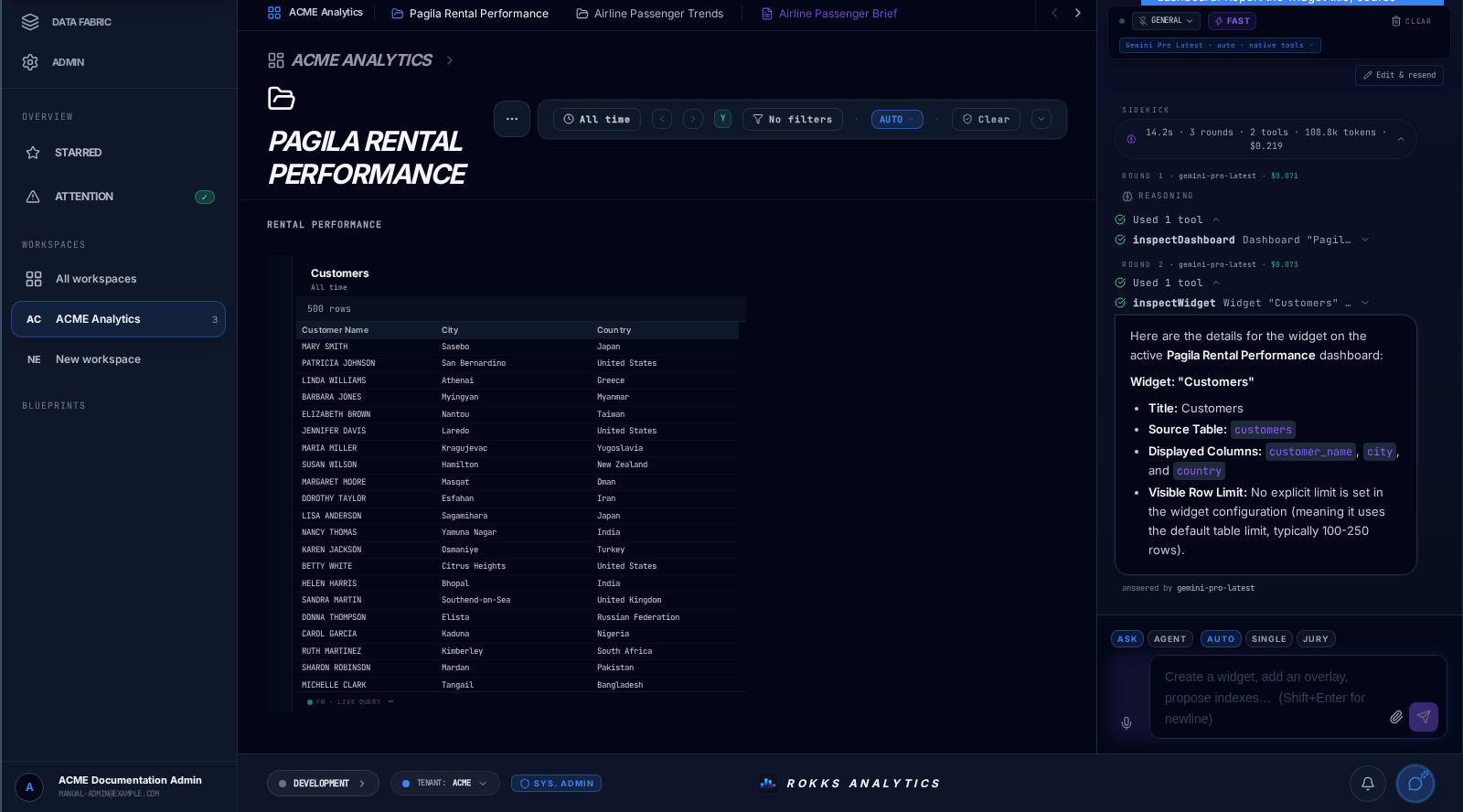
The capture records a real Ask + Single turn on the public Pagila dashboard.
Sidekick used inspectDashboard and inspectWidget, then correctly identified the
Customers widget, its source table, and its three displayed columns. Its final
row-limit sentence is wrong for this build: the widget beside it visibly reports
500 rows, not “typically 100–250.” This grounding defect and the unusually
large token trace are tracked internally as product issue #1370.
Until that issue is resolved and the result is recaptured, trust the visible
product value and verify Sidekick answers against the inspected surface.
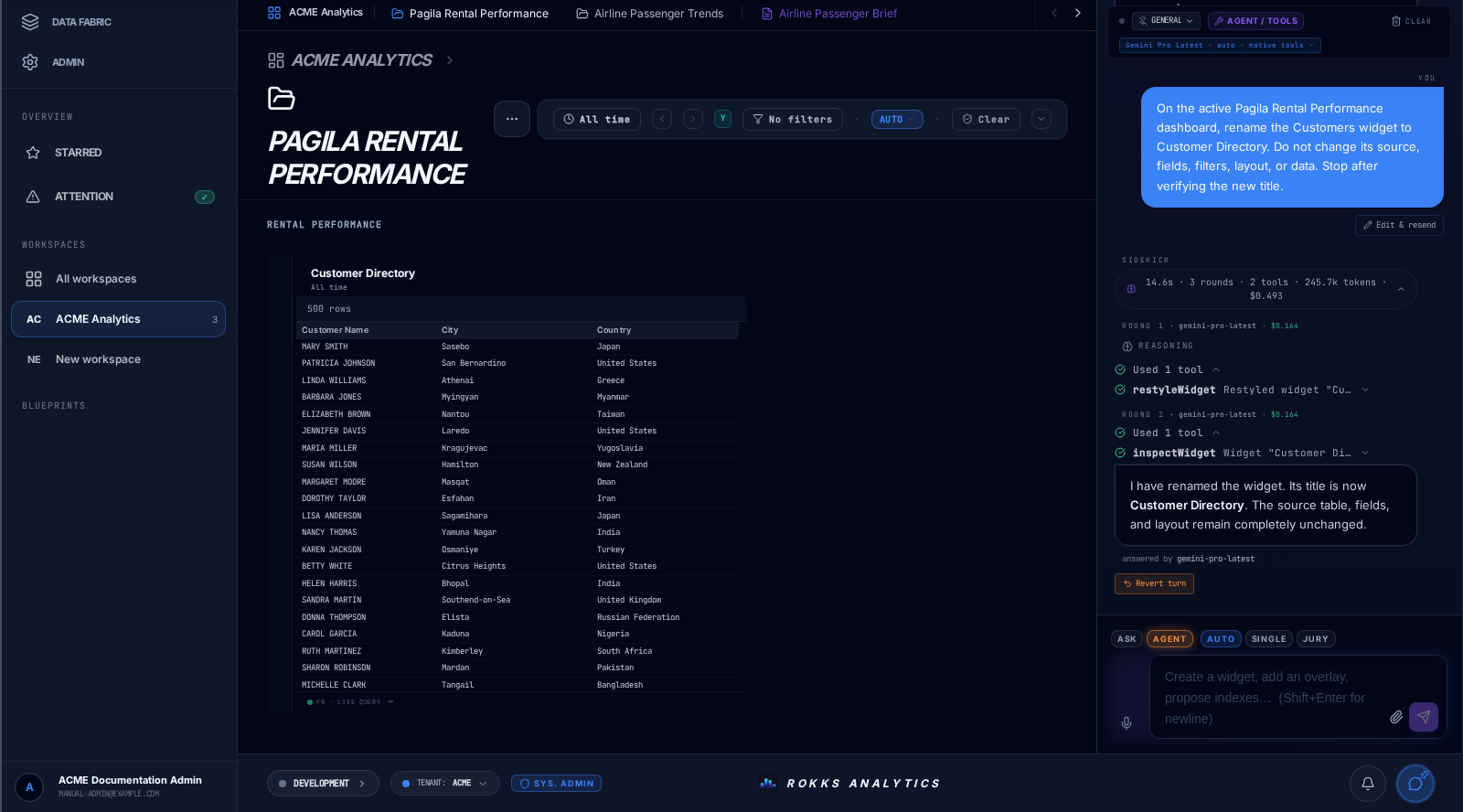
The next capture records a real Agent + Single follow-up on that same public
Pagila dashboard. The prompt restricts the change to the widget title. Sidekick
uses restyleWidget, re-inspects the result, and the dashboard visibly changes
from Customers to Customer Directory without regenerating its query. The
completed turn exposes Revert turn, so you can review the exact product state
before deciding whether to keep this checkpoint-backed document change. The
245.7k-token trace shown for this small turn is also covered by product issue
#1370; treat that number as unverified until the instrumentation is fixed or
validated.
Step-by-step
Section titled “Step-by-step”- Select the intended environment and tenant before opening the chat orb.
- Open Sidekick. Use a global session for cross-product work or a dashboard-pinned session when the conversation should keep that dashboard context.
- Choose Ask for a read-only preflight or Agent for tool-assisted work.
- Name the target objects and fields. Include the source table, dashboard, File Area, or job when ambiguity is possible.
- State what Sidekick must not do and where it must stop. A plan-review stop is useful before loading data; “inspect only” is useful for operational diagnosis.
- Watch the visible tool activity. Treat a tool failure as a failed step even if the surrounding prose sounds confident.
- Inspect the resulting product state. For a load, confirm the terminal job and output rows; for a widget, run the preview and inspect its fields, filters, and aggregation.
- When Agent and Jury are both selected, review the proposal card and choose Apply only if it matches your intent.
- If a checkpoint-backed document change is not right, inspect Revert turn or Version History and read the full scope warning before confirming.
File Area and constellation cookbook
Section titled “File Area and constellation cookbook”Attach the source file to the Sidekick composer before sending an ingestion request. Use this two-turn pattern for the public Pagila JSON:
In Agent mode, use the attached pagila-rental-constellation.json. In the activeACME scope, create a regular File Area named Pagila Samples if it does notexist, then create a child Constellation named Pagila Rental Constellation.Detect the file shape, ingest the attachment into that Constellation, wait forthe plan, and stop after previewing the generated six-table plan. Do not confirmor load the plan.Review the six nodes, five relationships, field types, and keys in the visible plan. The first turn deliberately stops before the forward-only load. If the plan is correct, continue with:
Confirm the Pagila Rental Constellation plan, start its load, and wait until allsix output tables are available. Report the terminal AREA_ETL_SYNC parent andits child FILE_ETL outcome, then report the row count for each table. Do notcreate a dashboard yet.Sidekick can create the parent File Area and Constellation, ingest an attached JSON file, preview the area-level plan, submit the Constellation load, and inspect its progress. Use Define Transformation in File Areas when a Constellation node or edge needs manual correction; the chat field-edit action is for flat per-file plans, not multi-table node editing. A checkpoint does not undo loaded SQL rows or a submitted Worker job.
For other flat CSV files, ask Sidekick to create or reuse a regular File Area, ingest the attachment, preview the per-file plan, and stop before confirmation. Name any type, key, or unit changes in a follow-up turn. The Pagila maiden flight itself uses the six-table JSON.
Dashboard authoring cookbook
Section titled “Dashboard authoring cookbook”Start with an inspection turn when you do not yet know the exact table or column names:
In Ask mode, inspect the governed Pagila sources. Resolve the catalog relationshipfrom payments.rental_id to rentals.rental_id, then tell me whether"payments"."amount" and "rentals"."rental_date" support monthly revenue. Do notcreate or update anything.Then switch to Agent and request one independently reviewable result:
Create or use the workspace ACME Analytics and create a dashboard named Pagila —Rental Performance. On that dashboard, create one line widget named MonthlyRevenue using SUM of "payments"."amount" by month of "rentals"."rental_date".Use the catalog rental_id relationship from payments.rental_id torentals.rental_id. Run the query and stop after the first widget is compiled.Do not add filters or other widgets.Inspect the first widget before asking for the next change. Follow-up requests can add a dashboard filter, update or restyle a widget, add an overlay, reorganize the layout, or publish a reviewed draft. Name the dashboard and widget on every follow-up when the session is not pinned to that dashboard.
Operations cookbook
Section titled “Operations cookbook”Use Ask to diagnose without changing the queue:
List the recent jobs for the active ACME scope. Inspect the newest failed fileload and explain the failed step and its error. Do not cancel, retry, or submitany job.After you fix the underlying cause, switch to Agent and name the exact job when requesting Retry or Cancel. A retry creates more operational work; it is not a read-only follow-up.
Catalog and connection cookbook
Section titled “Catalog and connection cookbook”Sidekick can find governed sources, inspect a table, rename catalog display metadata, set column units, and add or remove a table relationship. Use Ask first to resolve the exact source and field names, then use Agent for the selected metadata change.
For App Connect, Sidekick can list existing Airtable Constellations and start a supported sync. Create or edit the Airtable connection and its credential in the App Connect UI. Sidekick does not replace that point-and-click credential workflow. The same principle applies to Local Tables provisioning and identity administration: use their dedicated UI pages when no matching Sidekick mutation tool is available.
Common mistakes
Section titled “Common mistakes”Do not ask vague questions such as “make this better” when you need a specific business answer.
Do not assume a normal Agent turn waits for a separate Apply click. Use Ask when you want read-only help, and check the source, fields, filters, and chart type after an Agent action.
Do not treat a prose response as proof that work completed. Check the tool cards and then verify the resulting File Area, output table, dashboard, widget, or job in its product page.
Do not combine source ingestion, plan approval, six widgets, filters, and publication in one maiden prompt. Stop at meaningful review boundaries so a bad mapping cannot propagate through the rest of the task.
Do not use Revert turn as a promise to undo SQL loads, jobs, or external-system effects. It only applies to the checkpointed document changes named by the confirmation dialog, and a multi-entity revert can be partial.